At a glance
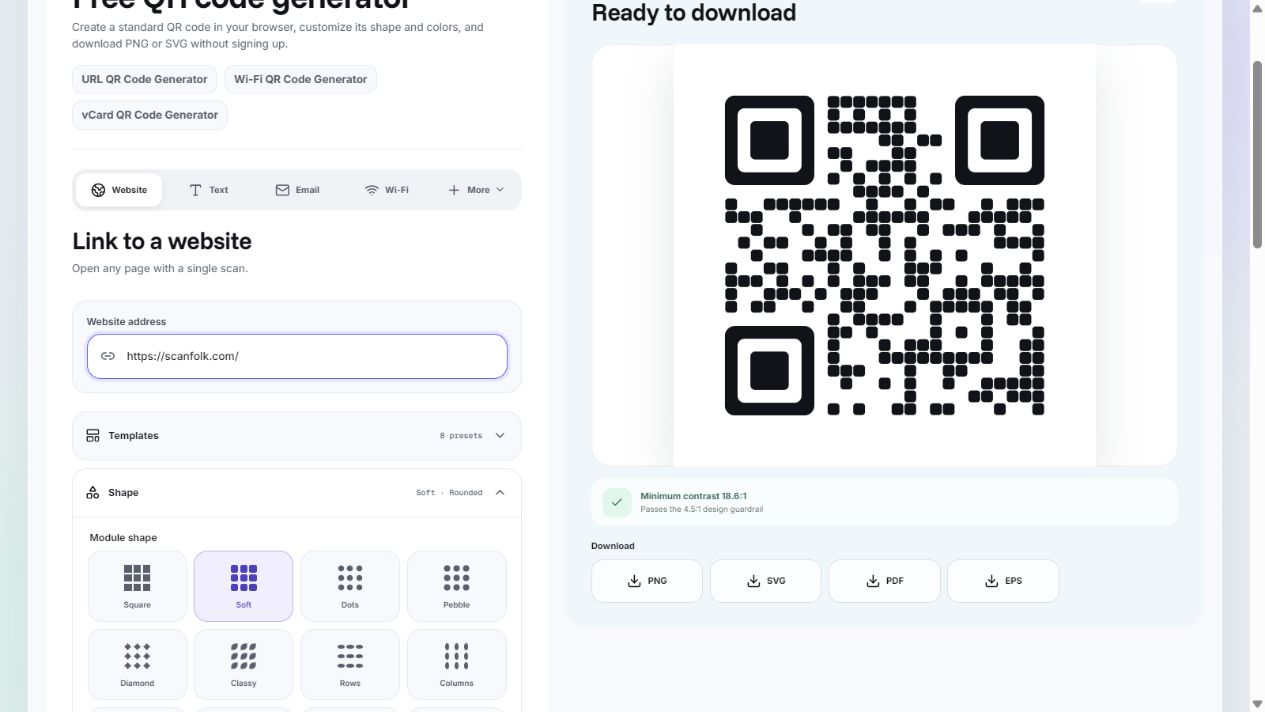
Create a QR and download PNG or SVG- PNG stores pixels; SVG keeps the Standard QR geometry scalable.
- Keep the QR square and preserve its clear border when placing either format.
- Vector artwork does not guarantee scanning: test the finished layout and actual print.
Choose the file for your workflow
| Your next step | PNG | SVG |
|---|---|---|
| Place in an image upload field | A practical choice when PNG uploads are accepted. | Check whether the destination accepts SVG. |
| Resize in a design layout | Use enough pixels for the final placement; avoid enlarging a small export. | QR geometry remains vector when the app preserves it. |
| Use a transparent background | Supports transparency. Test against the actual background. | Supports transparency. Embedded logos can still contain raster pixels. |
| Send artwork to a printer | Provide sufficient pixels at the requested physical size. | Use if the printer accepts SVG, or preserve vectors in its requested format. |
| Share a Creative image | A raster image can preserve the generated artwork. | This guide does not claim generated QR artwork becomes vector. |
What changes when you enlarge a QR?
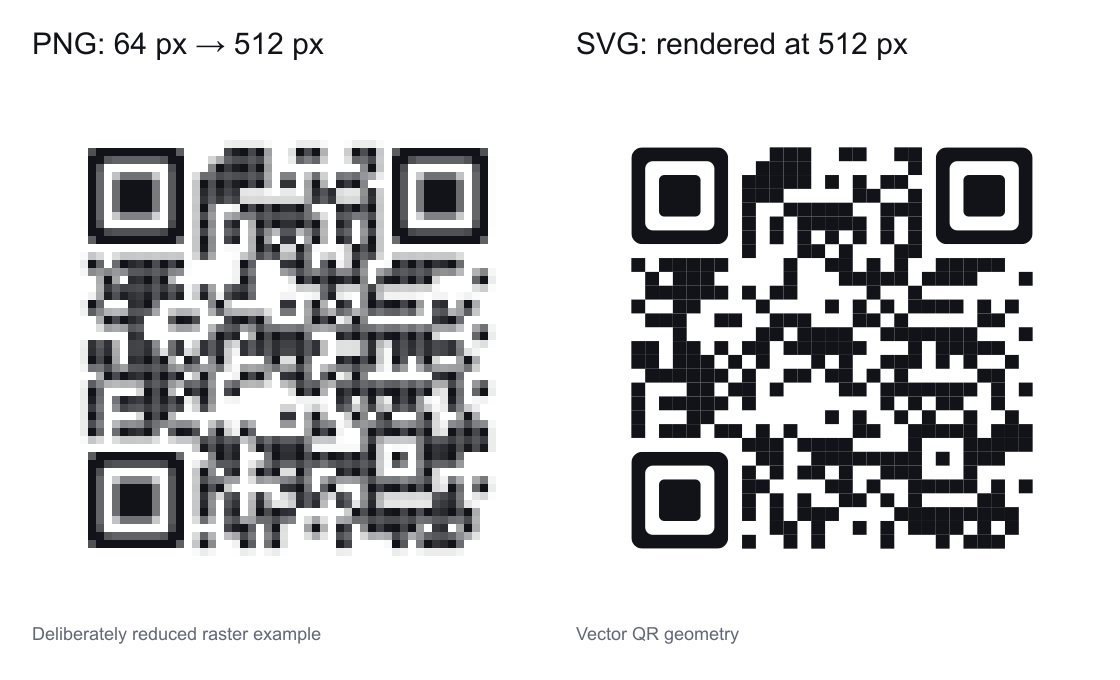
PNG has a fixed pixel grid. A small file cannot gain new source detail when you enlarge it. SVG describes geometry, so a compatible app can render the QR at a different size without enlarging those pixels.
The comparison below uses one Scanfolk QR with the same destination. The PNG was deliberately reduced to 64 × 64 pixels, then enlarged to 512 × 512. The SVG was rendered directly at 512 × 512. It illustrates resizing, not a scan-success benchmark.
Set the physical size in your layout
For PNG, effective pixels per inch depend on the file width and placed width: pixels ÷ inches. For example, a 1024-pixel image placed at 2 inches gives 512 pixels per inch; at 4 inches it gives 256. These are image-density calculations, not guaranteed scanning sizes. Follow the printer’s requested file format and resolution.
For SVG, set the physical width and height in the layout. Keep proportions locked. DENSO WAVE specifies a quiet zone four modules wide around a conventional QR; do not crop this border or let surrounding graphics intrude.
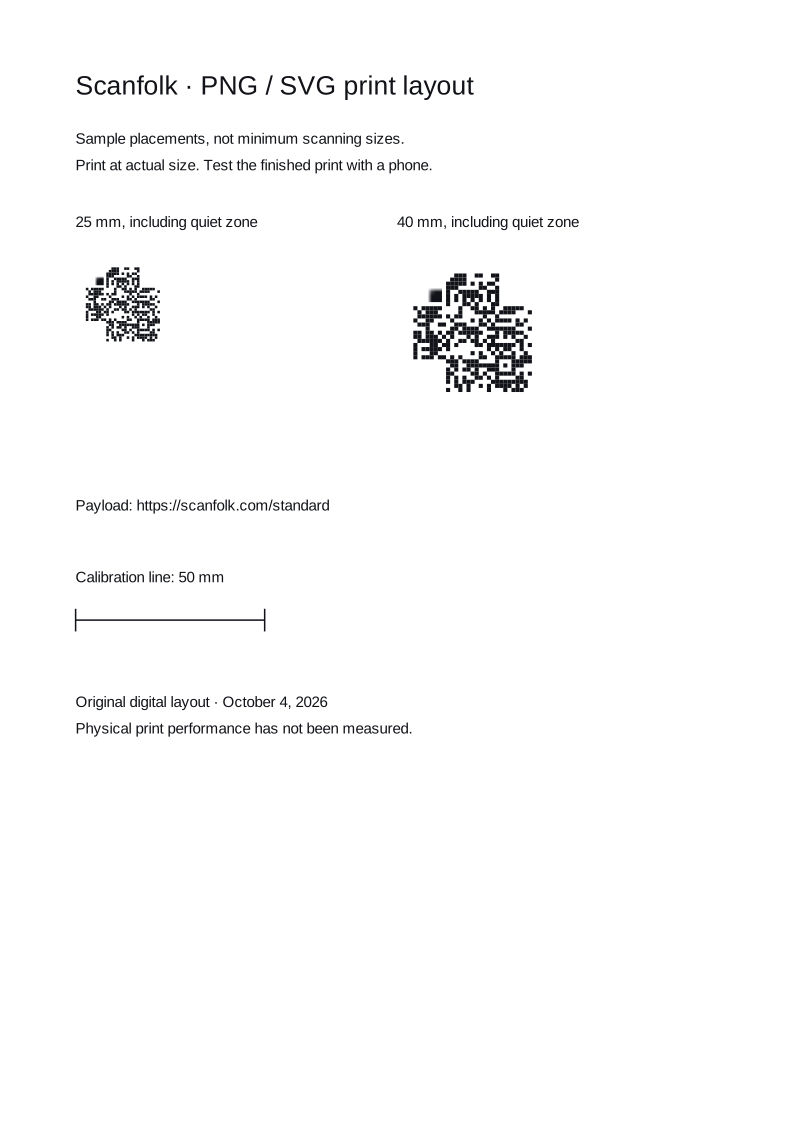
The A4 layout below shows the same QR at 25 mm and 40 mm, including its border. These are sample placements, not minimum-size recommendations. Print at actual size, check the ruler and test both with the phones, lighting and distances your audience will use.
Choose the background before exporting
A transparent export reveals whatever sits behind the QR in your design. A pale surface can keep the dark modules distinct; a photograph, pattern or dark surface can make them hard to separate. Keep the quiet zone visually clear and inspect the complete composition.
SVG keeps the QR geometry vector, but an uploaded raster logo does not gain detail from the SVG wrapper. Test the logo and the surrounding QR at their final size.
Download from Standard
Open Standard, choose your content and complete the required fields. For an ordinary direct QR, keep Scan tracking off. Once the preview is ready, choose PNG or SVG. The files do not require a signed-in account in this direct mode.
Scan tracking encodes a Scanfolk short link and requires an account before export. File format and link behavior are separate choices: switching from PNG to SVG does not make a direct destination editable.
PDF and EPS controls are also available in Standard. This page compares PNG and SVG; if a supplier requests another format, confirm its import and print requirements before sending your file.
Check the placed file before sharing
Scan the finished file from another screen and verify the exact content or destination. Then scan your final print, rather than relying only on the editor preview. Check that your design app has not cropped, stretched or rasterized the QR unexpectedly.
If it cannot be read, restore the border and contrast, increase the placement size or simplify the design. If the code is read but the website does not open, inspect the destination or redirect separately.
Sources and review
Reviewed by the Scanfolk editorial team on October 4, 2026. The screenshot is from Standard; the resolution comparison and print layout are original local Standard renderer examples. Their downloadable QR assets were digitally decoded for the stated payload. No physical print success is claimed. References describe file formats and the conventional QR quiet zone.