At a glance
Use the pre-publish checklist- A detected QR is not enough: it must contain the right data and complete the intended action.
- A digital decoder check and a phone camera test answer different questions; neither replaces the other.
- Check the final shared or printed artifact again after changing its design, size or background.
1. Write down what a successful scan should do
For a direct website QR, record the full normalized URL, including any required path, query parameters and fragment. For a tracking QR, record the expected encoded short link and the intended final destination separately. Seeing the short link in decoded data is expected in tracking mode.
For other QR types, describe the action as well as the content: a Wi-Fi QR should offer the intended network and connect; a contact QR should import the intended fields; an event should show the correct date and time. A camera recognizing the symbol does not establish that these actions worked.
Keep private payloads and test files local. Wi-Fi QR codes can contain a password, and contacts may contain personal details. Do not upload them to an unfamiliar online decoder just to run a test. The examples in this article use a synthetic public example.com URL.
2. Check the exact data in the exported file
Save the PNG or SVG you intend to distribute. Keep the original file and identify it by filename; for a reproducible technical check, also record its SHA-256 hash, renderer settings and decoder version. Testing only a preview does not establish the contents of the saved export.
Use a decoder that exposes the QR data. Confirm that the result is a QR code, compare its full text with your expected normalized payload and distinguish three outcomes: exact match, different data, and no QR decoded. A scanner may show only a domain or a shortened display label; that is insufficient for an exact-data comparison.
If you need to test SVG digitally, rasterize a copy at a recorded resolution while retaining the original SVG. Record the rasterizer and any resizing or compression. For Unicode or structured contact data, compare the intended decoded text or bytes rather than relying on a cropped browser label.
A decoder can also detect a different barcode format in a patterned image. Record that separately; do not count it as a successful QR result. Use a local decoder for sensitive information. Scanfolk does not provide an upload-and-decode tool on this page.
What a passing and failing digital check look like
Our October 3, 2026 Standard audit used two URL payloads and 16 original PNG fixtures: four treatments, each with and without a synthetic logo. H error correction and a four-module margin were used throughout. ZXing-C++ 2.3.0 checked each fixture at 256, 512 and 1024 pixels, plus 512 pixels with Gaussian blur 0.6 and JPEG quality 80; RGB size variants used Lanczos resizing.
The full audit had 60 exact QR decodes out of 64 checks and no different QR payload. Four Dots checks did not decode. The pair below isolates one public payload, without a logo: Square decoded exactly at 256 pixels, while Dots did not. Dots decoded at the other three conditions for this fixture.
This is an observed result for specific pixels, a decoder and recorded conditions. It is not a phone or print success rate, and it does not mean every Dots QR fails. A different longer-payload Dots fixture failed at 1024 pixels, so simply making the image larger did not consistently resolve failures.
Same payload, four recorded conditions
| Condition | Square | Dots |
|---|---|---|
| 256 px RGB | Exact payload | No QR decoded |
| 512 px RGB | Exact payload | Exact payload |
| 1024 px RGB | Exact payload | Exact payload |
| 512 px · blur 0.6 · JPEG 80 | Exact payload | Exact payload |

3. Complete the action on real phones
Display the exported QR on another screen and scan it with a phone camera or the scanner your audience uses. Record the device, OS and scanner. Check recognition, the data or prompt shown, and whether completing the action produces the expected result.
For a URL, open the link and verify the final page as a visitor without your signed-in permissions. In tracking mode, check both the short link and the destination. For Wi-Fi, confirm a connection to the intended network rather than only the join prompt. For a contact or event, inspect the imported fields.
Where your audience uses both iPhone and Android, test representative devices from both. Record each result separately. One successful scan on your own phone is useful evidence for that device and condition; it does not establish a cross-device matrix. The device log below is blank for you to fill, not a record of Scanfolk phone tests.
4. Test the layout people will actually see
Place the QR on its final background and keep the clear border. DENSO WAVE specifies a four-module quiet zone on every side of a conventional QR. Do not crop that space, stretch the proportions or put text into it.
For a digital placement, inspect the version after the platform has resized or compressed it. For print, scan an actual-size sample on the chosen material, including any finish or curvature. Record the physical dimensions, distance and lighting rather than reporting only that it scanned once.
Try the intended viewing distance and realistic lighting. Record whether glare, blur, a low-contrast background or a small placement changes the outcome. Set acceptance criteria for your use case before testing; this guide does not supply a universal minimum print size or a guaranteed success threshold.
Your pre-publish QR checklist
Use these steps for each finished artifact. Keep a separate record when the exported file, destination, layout or test condition changes. The downloadable checklist is a local Markdown document; the CSV is a blank test log you can open in a spreadsheet, with no signup.
Record expected and decoded data, then the action and placement results. Mark a test NOT RUN until it is performed. Leave untested devices blank; do not turn an assumption into a passing row.
Release checklist
| Check | What to record |
|---|---|
| Identify the final artifact | Filename, version and optional SHA-256 |
| Verify the exact payload | Expected data, decoded data and match result |
| Complete the action | Final page, connected network or imported fields |
| Try relevant devices | Model, OS, scanner and result for each |
| Test the final placement | Size, distance, lighting, background and medium |
| Resolve and retest failures | Changed setting, new artifact and repeated checks |
If a check fails, isolate the cause
Different payload: stop distribution and compare the input, normalized data and exported artifact. Correct the content, regenerate the file and repeat every affected check. Do not accept a code merely because it opens some website.
No QR decoded: compare with a plain Square design without a logo or gradient. Restore the border and check contrast, resolution and size. Change one variable at a time so you can identify what helped.
Correct data, wrong action: investigate the destination, permissions, redirect service or receiving app. A successful decode cannot repair a deleted page, wrong Wi-Fi password or unsupported import.
Digital check passes, phone or print fails: inspect the final background, dimensions, lighting, reflections and scanner behavior. Keep the failing row in your record, adjust the artifact or placement and retest under the same conditions.
Sources and review
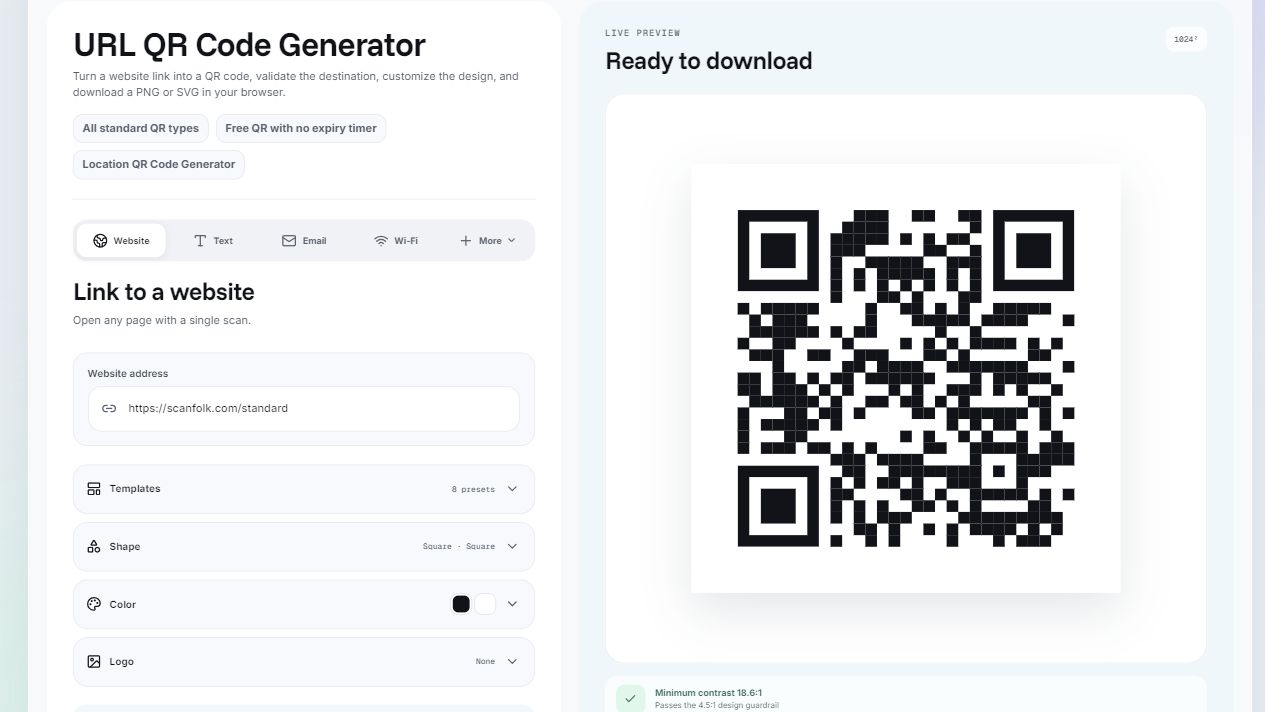
Reviewed by the Scanfolk editorial team on October 10, 2026. The interface capture is from October 10; the digital examples and results come from the recorded October 3 Standard audit. Comparison artwork embeds the original audited PNG bytes. The downloadable device log is an unfilled template. No physical-device matrix, print benchmark or universal success rate is claimed.