At a glance
Make a QR code for a link- Use the address of the exact page you want visitors to reach, and check it without your signed-in session.
- A direct QR stores the URL in its pattern. Tracking uses a hosted short link that redirects to your destination.
- Check both the decoded address and the final page; successful QR decoding alone does not prove the website works.
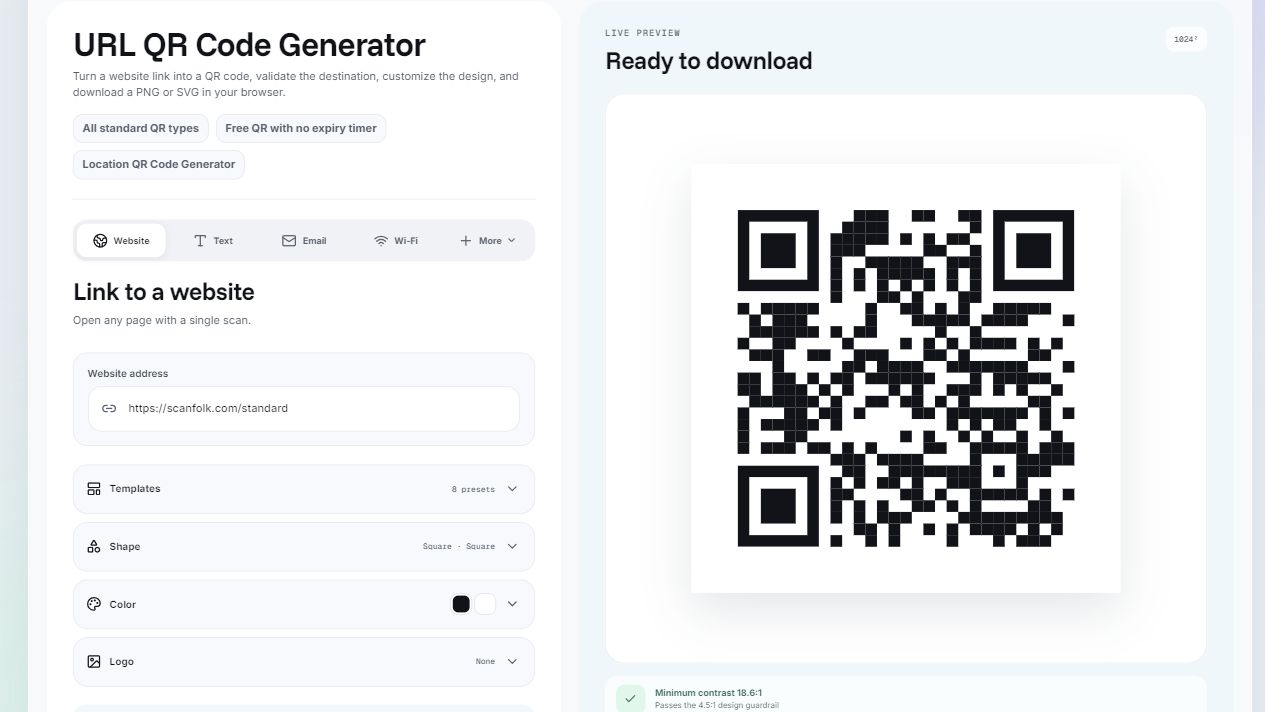
1. Prepare the address people should open
Open the destination and copy the full address from the browser, including https:// and the page path. Prefer a stable page you control over a temporary preview, checkout session or expiring file link. A relative address such as /menu is not a complete website address for this generator.
Keep query parameters that the destination needs. In https://example.com/menu?location=main#drinks, /menu selects the page, ?location=main is a query parameter and #drinks is a fragment that the page can use to locate a section. A fragment is not sent to the server; whether it opens a section depends on the page.
Test the address in a signed-out or private browser window. Check that the intended visitor can view the content without your account or special permissions. Do not put passwords, access tokens or private account links into a QR intended for public distribution.
2. Paste the link into the URL generator
Open the URL QR generator and paste the address into Website address. Scanfolk adds https:// if you omit the protocol and normalizes the URL before encoding it, so including the complete address makes your intent clear. Correct any address error before downloading.
For the original example above, we entered https://scanfolk.com/standard, selected Square modules and Square finders, kept the four-module border and left Scan tracking off. We captured the live SVG preview and decoded a rasterized version with ZXing-C++. It returned exactly https://scanfolk.com/standard. This checks this preview digitally; it is not a saved-browser-export or phone/print test.
3. Choose a direct link or tracking
With Scan tracking off, the QR stores the destination URL directly. Direct Standard PNG and SVG downloads are free and do not require an account. If you control that web page, you can update its content while keeping the same address, but the URL already stored in a downloaded QR cannot be replaced.
With Scan tracking on, the QR stores a Scanfolk short link. Opening it uses the redirect service to reach your website and records scan counts and times. This mode requires an account before export and adds a dependency on the hosted service. Tracking is not a promise that you can edit destinations later.
What is inside the QR?
| Choice | Encoded address | What to verify |
|---|---|---|
| Direct | Your normalized destination URL | Decoded URL and destination page |
| Tracking | A Scanfolk short link | Decoded short link, redirect and destination page |
A recorded tracking example
In a production check on October 4, 2026, we created a tracking QR for the synthetic destination https://example.com/scanfolk-standard-qa-20261004?campaign=seo#check. The captured QR preview decoded exactly to https://qrpaw.xyz/CPuULT, the hosted short link rather than the destination.
One ordinary browser visit reached the complete destination with ?campaign=seo and #check preserved, and the recorded scan counter changed from 0 to 1. This is one historical browser observation for that fixture, not a guarantee for every link or a current availability check. It did not establish an HTTP status code or universal scanner behavior.
4. Download and check the finished QR
Start with a dark QR on a light background and keep the clear border on all four sides. Choose PNG for a ready-to-place image or SVG for a design workflow that accepts vectors. Keep the proportions square and preserve the border when placing the file in a document or layout.
Scan the saved file from another screen. For direct mode, compare the decoded address with the normalized URL you intended to encode. For tracking mode, expect the short link first and then verify the final destination in the browser. Confirm the right page, query-dependent content and any intended section.
Test the final placement at its actual size. For printed use, scan a physical sample on the chosen material before ordering a batch. Keep a readable web address or a short explanation beside the QR so visitors know where it leads.
If the QR scans but the link does not work
Wrong page: compare the decoded URL, including its path and parameters, with your intended address. Correct the input and generate a new direct QR if the encoded address is wrong.
Sign-in or permission screen: the destination may be accessible only to you. Publish a page the intended audience can access, or explain the access requirement before people scan.
Missing section or campaign detail: test the complete address outside the QR first. The website must recognize the parameters and fragment; a QR cannot add that behavior to the page.
Tracking link fails: check the short link and the destination separately. A healthy destination does not prove the redirect is available. Avoid placing a hosted redirect on long-lived materials without considering that dependency.
Camera cannot decode: return to a simple Square design, restore the border and test size, contrast and the final background. If a direct QR still decodes correctly but its website later disappears, the problem is the destination rather than an expiry timer in the image.
Sources and review
Reviewed by the Scanfolk editorial team on October 10, 2026. The original direct-mode interface capture and digital preview check are dated October 10. The tracking example comes from the recorded October 4 production verification and uses a synthetic example.com address. Neither observation establishes a phone or print success rate. Test your own exported file and destination.