At a glance
Add a logo to your QR- The current generator uses a fixed 18% target width with a five-module minimum; it has no logo-size slider.
- H error correction helps recover encoded data, but its recovery percentage is not a logo-area allowance.
- Test the saved export and final placement. A digital decode does not establish phone or print reliability.
1. Prepare your destination and logo
Use a stable destination your audience can open. Check its full address, including any required parameters, before creating the QR. For a direct website QR, leave Scan tracking off; tracking encodes a hosted short link instead of the destination.
Choose a simple, recognizable logo with room around its artwork. The upload accepts PNG, JPEG or WebP up to 3 MB. The browser fits the image into a 256×256 PNG while keeping its aspect ratio. A small wordmark or fine lettering may be hard to recognize at QR size.
Use artwork you have permission to use. The violet plus in our examples is a synthetic demonstration mark, not a company endorsement.
2. Upload it in the Logo panel
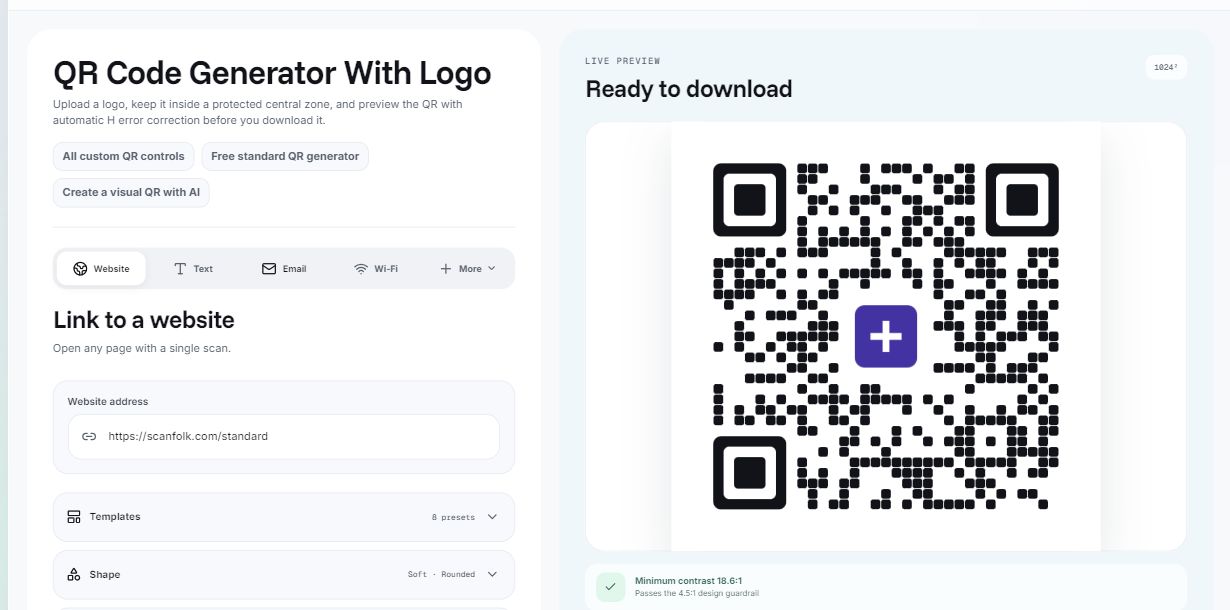
Open the QR generator with logo and enter your content. Expand Logo, choose Upload logo and select the image. The panel shows the filename and Added · H correction; the preview updates with the centered image. Remove logo lets you replace it.
The generator uses a target logo width of 18% of the QR symbol width, with a minimum of five modules. It removes modules from a central square whose side is the logo width plus 2.2 modules. This padding is added to the total side length, not 2.2 modules on each side.
The center follows the QR background; the renderer does not automatically add a white backing plate. An opaque background already inside your uploaded image remains part of that image. Inspect the result, especially with transparency or a gradient. There is no manual placement or logo-size slider in the current interface.
3. Keep the border and understand H correction
Adding a logo forces H error correction in Scanfolk. Keep the four-module quiet zone around the QR and start with a dark symbol on a light background. Avoid editing the three corner finder patterns or stretching the exported image.
DENSO WAVE describes error correction in terms of codewords, units of encoded data. It is not a percentage of the visible square that can safely be covered. A logo and its cleared zone remove specific modules; the result also depends on the payload, matrix and rendering conditions.
Use the product default as a starting point, then test your own exported file. Do not interpret the experiment below as a universal maximum logo size or a recommendation to enlarge the logo outside the generator.
What happened when we enlarged the logo?
On October 10, 2026 we rendered two synthetic URL payloads with Square modules and finders, H correction, a four-module border, a dark foreground and white background. Each payload used the same matrix across five logo settings: no logo, the product’s 18% target, and experimental 26%, 34% and 42% targets. The synthetic raster logo and total 2.2-module center padding were held constant.
The larger settings were made in an offline copy of the renderer by changing only its ratio constant. They are not available in the interface and did not change the product. Width percentages refer to the QR symbol excluding its quiet zone. Cleared area is larger than the logo and is not the same as its percentage width.
We saved 1024×1024 PNGs and checked each at 256, 512 and 1024 pixels, plus 512 pixels with Gaussian blur 0.6 and JPEG quality 80. Pillow used RGB Lanczos resizing; ZXing-C++ 2.3.0 returned the decoded data. Each cell counts four different digital conditions once, rather than repeated independent trials.
The 18% fixtures decoded exactly in all eight checks. At 42%, the shorter URL failed all four checks while the longer URL passed all four. Across all fixtures, 36 of 40 checks matched exactly and none decoded a different QR payload. This illustrates why a size rule alone cannot establish reliability. It is not a physical-camera test, print test or success rate for all logos.
Exact payload matches in the recorded conditions
| Logo target width | Short URL | Long URL |
|---|---|---|
| No logo · control | 4 / 4 | 4 / 4 |
| 18% · product setting | 4 / 4 | 4 / 4 |
| 26% · experimental | 4 / 4 | 4 / 4 |
| 34% · experimental | 4 / 4 | 4 / 4 |
| 42% · experimental | 0 / 4 | 4 / 4 |

4. Export and test the finished design
Download PNG for a ready-to-place image or SVG for a workflow that accepts vectors. Direct Standard exports are free and do not require an account; tracking asks you to sign in before export. Keep the proportions and clear border intact.
Decode the saved file and compare the complete data with what you intended to encode. For tracking, verify the short link separately from its final destination. Then use a phone to complete the intended action.
Repeat the test after placing the QR in a layout, after platform compression, and on an actual-size printed sample when you will print. Try the devices, distance and lighting your audience will use. Keep untested device rows blank.
If the logo QR does not scan
Remove the logo and test a plain Square QR with the same content first. If that fails, check the payload, border, colors, export resolution and placement. If it works, replace the uploaded image with simpler artwork and test the complete logo export again.
Change one variable at a time. A successful preview or contrast guardrail does not establish that the finished QR will scan on every phone. Keep any failed result in your record rather than selecting only successful examples.
For a mascot, texture or scene around the QR, Creative is a different workflow. Adding a centered logo does not turn a conventional QR into an artistic QR.
Sources and review
Reviewed by the Scanfolk editorial team on October 10, 2026. The interface capture and offline experiment are dated October 10. Only the 18% target is a current product setting. All experimental failures are retained. These digital checks do not establish a phone/print matrix or a universal safe coverage threshold.