At a glance
Customize a QR code- Color, shape and logo controls customize a conventional QR; Creative makes an artistic image around the QR.
- Change one design setting at a time so you can identify what affects scanning.
- A passing contrast check or digital decode does not guarantee every phone or printed placement will work.
1. Start with the content and a simple design
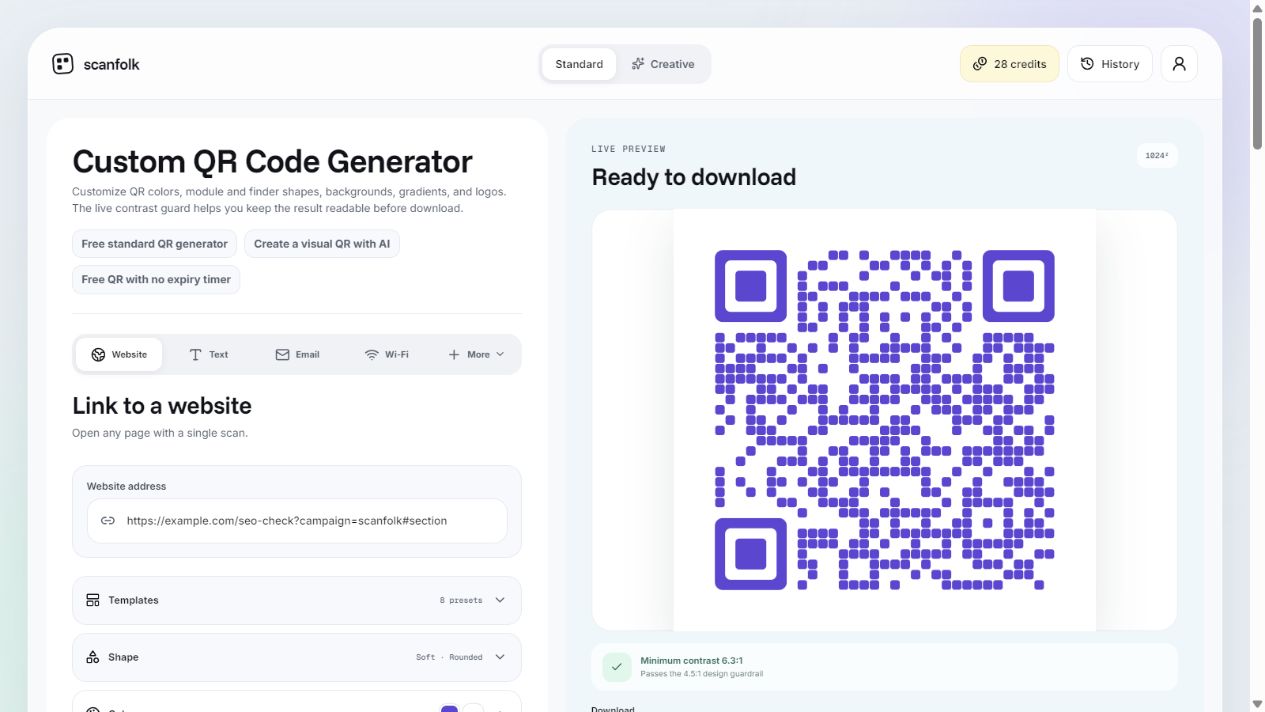
Open the Custom generator, choose the QR type and enter your content. For a website, paste the full public address and check that it opens the intended page. Begin with a conventional dark-on-light design before adding decoration.
With Scan tracking off, Standard stores the content directly and offers free PNG and SVG downloads without an account. Turning tracking on uses a Scanfolk short link and requires an account before export. Styling does not change that distinction.
2. Choose colors and shapes
Open Color and select a dark foreground against a light, plain background. The live guard reports the weakest foreground/background contrast, including gradient colors. A passing value is a useful design check; it does not test camera focus, print quality or recognition of the module shapes.
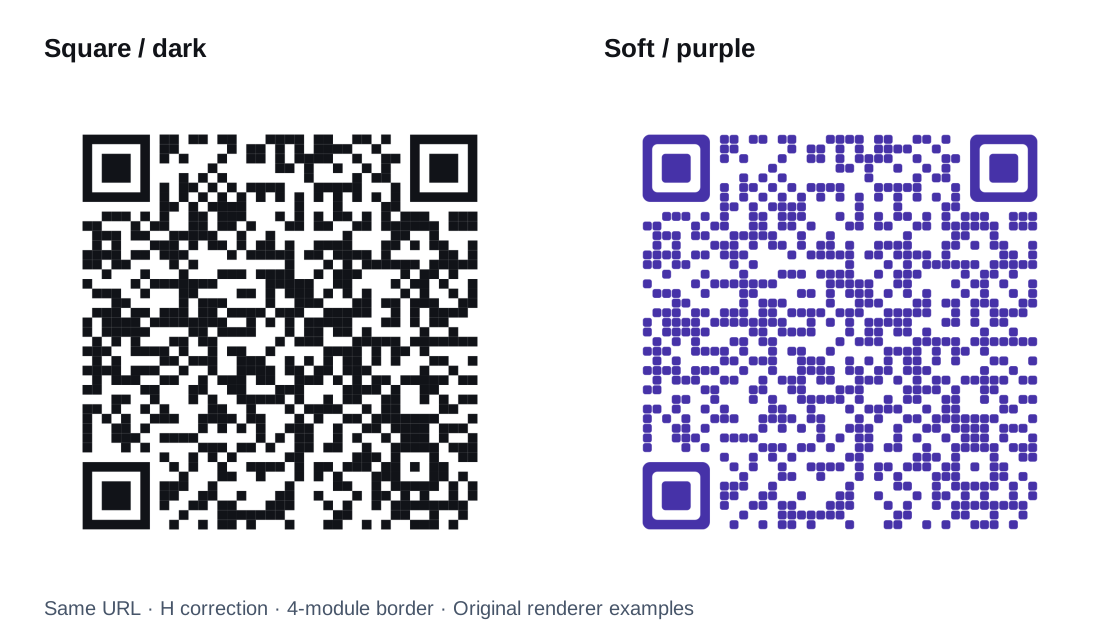
Open Shape to compare module styles and the three large finder patterns. In the example below, Square modules and square finders become purple Soft modules and rounded finders. Both encode exactly the same URL. Changing the appearance does not make a direct QR’s destination editable.
For a restrained brand treatment, use one accent color and a simple shape. A busy background, pale modules or several decorative changes at once make failures harder to diagnose. If you export with transparency, test on the actual background it will reveal.
3. Add a logo without crowding the QR
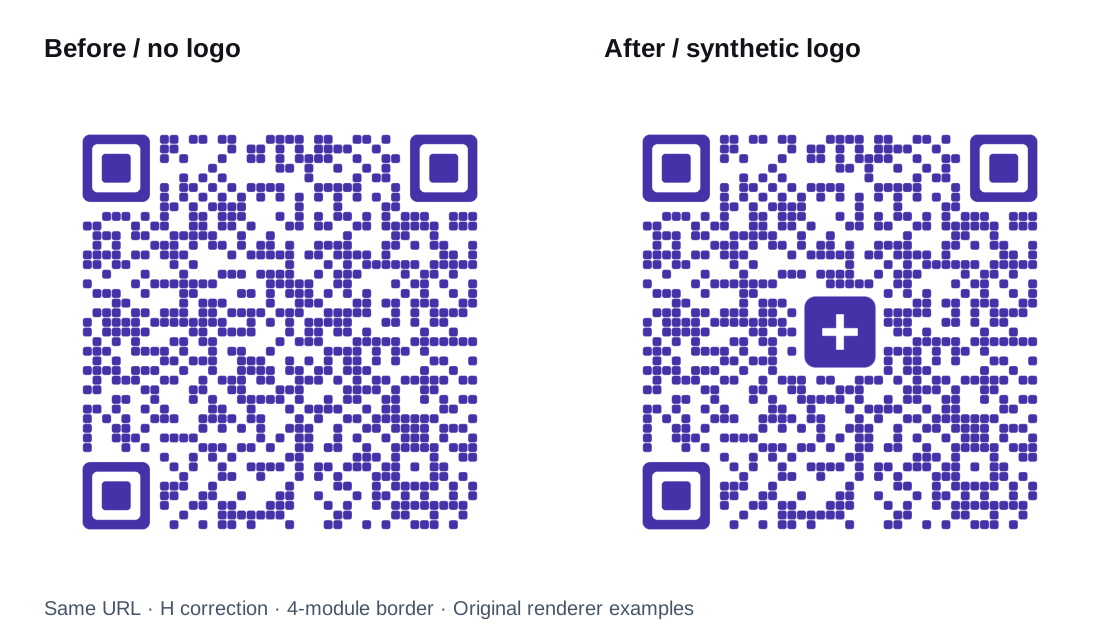
Open Logo or start in the QR with logo generator. Upload a PNG, JPEG or WebP image, then inspect the center and the surrounding data pattern. Scanfolk switches to H error correction and adds padding around the logo.
The pair below uses a synthetic SF logo for demonstration. Its configured width is 18% of the symbol width with 2.2 modules of padding. Those are the settings tested for these fixtures, not a safe percentage for every logo or payload. Keep the mark simple and readable at the final size.
Error correction can recover some damaged codewords; its restoration percentage is not permission to cover the same percentage of the image. If scanning fails, remove or simplify the logo and compare with the plain version. A raster logo also stays raster when embedded in an SVG export.
What passed in our digital scan comparison?
On October 3, 2026, we tested 16 Standard renderer PNGs: two website payloads, four style treatments, each with and without the synthetic logo. Every fixture used H correction and a four-module margin. The decoder was ZXing-C++ 2.3.0.
Each fixture was checked at 256, 512 and 1024 pixels, plus a 512-pixel version with Gaussian blur 0.6 and JPEG quality 80. RGB size variants used Lanczos resizing. That gives 16 checks per style and 64 checks overall. Sixty checks decoded the exact intended QR payload; four Dots checks did not decode a QR. No different QR payload was reported.
Dots failed at 256 pixels for the shorter payload and at 1024 pixels for the longer payload, both with and without a logo. The larger size did not consistently fix it. Two longer-payload Dots checks at 512 pixels also reported an unrelated non-QR barcode; we did not count that as a different QR destination.
This is a bounded digital decoder test, not a measurement of camera success, outdoor use or print reliability. Square, Soft and purple Soft passed this matrix; that result cannot guarantee every design using those styles.
Digital results by treatment
| Treatment | Exact QR decodes | Observed failures |
|---|---|---|
| Square · square finders | 16 of 16 | None in this matrix |
| Soft · rounded finders | 16 of 16 | None in this matrix |
| Purple Soft · rounded finders | 16 of 16 | None in this matrix |
| Dots · circle finders | 12 of 16 | Shorter URL: 256 px; longer URL: 1024 px; plain and logo |
4. Preserve the border and choose an export
Keep a clear quiet zone on all four sides. DENSO WAVE specifies four modules around a conventional QR. Do not crop that border, stretch the symbol or let text and artwork enter the clear area.
Choose PNG for a ready-to-place image or SVG when your design app accepts vector geometry. Set the final placement size in the layout and keep proportions locked. Check that the app has preserved the border and has not reduced the image to an unsuitable resolution.
5. Check the finished design before sharing
Content: scan the exported file from another screen and compare the decoded address or information with what you entered. Open the destination and confirm it works for a visitor who is not signed in.
Appearance: inspect contrast, a clear four-module border, square proportions and the logo at the intended size. Test after placing the QR on its final background, not just against the editor’s white preview.
Placement: try the phones, lighting and scanning distances your audience will use. For print, test an actual-size sample on the chosen material before ordering a large batch.
If a camera cannot read it, restore a plain dark-on-light Square design and compare. Remove the logo or gradient, restore the border and adjust the placement size. Reintroduce changes one at a time. If it decodes but the website fails, check the destination or redirect separately.
When should you use Creative instead?
Stay in Standard Custom for explicit QR geometry, brand colors, simple shape changes and a central logo. Choose Creative when the QR should become an artwork with a subject, material or scene.
Creative is a separate generation workflow. A conventional QR’s contrast guard does not validate an artistic result. Review the finished generated image and test its exact payload before distributing it.
Sources and review
Reviewed by the Scanfolk editorial team on October 10, 2026. The interface capture is current; downloadable examples and digital results come from the recorded October 3 Standard customization audit. Comparison figures embed the original PNGs unchanged. These examples use a public example.com URL and a synthetic logo. No universal logo size, phone success rate or print success is claimed.