At a glance
Make a Wi-Fi QR- A Wi-Fi QR stores network settings directly; it does not use a website redirect or Scanfolk scan tracking.
- Anyone who can decode the QR can recover its stored password. Share it only with people who should have access.
- Recognizing the QR, joining the intended network and reaching the internet are separate checks.
1. Get the network details
Use the name shown in your router settings or Wi-Fi network list. Match capitalization, punctuation and internal spaces. Check the network's security mode in its settings instead of guessing from the password.
Prefer a guest network if that is the access you intend to offer. Confirm its access rules with the person who manages the network. Creating a QR does not set up a guest network or change router permissions.
The current generator trims spaces at the beginning and end of both the name and password. If your actual credentials contain those spaces, this workflow will not preserve them; use manual joining rather than distributing an incorrect QR.
2. Fill in the Wi-Fi fields
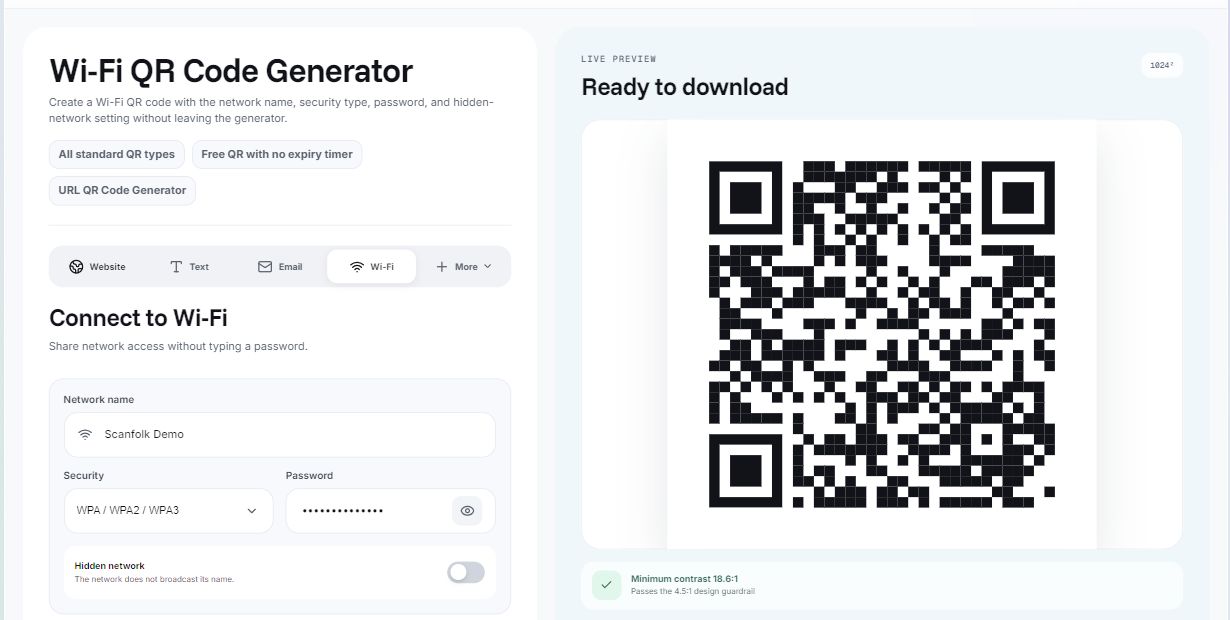
Open the Wi-Fi generator. The Wi-Fi content type is already selected. Enter Network name, choose Security and enter Password when the selected mode requires one. Turn on Hidden network only if the network does not broadcast its name.
The generator has no enterprise fields for an EAP method, identity, anonymous identity or certificate. A workplace network requiring those settings is outside this walkthrough. A QR also does not bypass a captive portal: joining the wireless network may still lead to a separate login or terms page.
You can type punctuation normally. The generator escapes reserved Wi-Fi payload characters automatically. Do not add your own backslashes as extra escaping.
Wi-Fi settings explained
| Field or option | What to enter | What it changes |
|---|---|---|
| Network name | Your network's exact SSID, subject to the whitespace limitation above | The network the phone should join |
| WPA / WPA2 / WPA3 | Select for a personal password-based network using this mode | Encodes the conventional `WPA` authentication value; actual joining depends on the device and router |
| WEP | Select only to describe an existing network configured for WEP | Encodes `WEP`; this guide does not recommend changing a router to WEP |
| Open network | Select only if the network does not require a Wi-Fi password | Encodes `nopass` with an empty password |
| Password | The existing personal-network password | Stored directly in the QR; masking the field does not encrypt the QR |
| Hidden network | Enable only for a non-broadcast network | Encodes the hidden flag; does not hide the contents of the QR |
3. Keep the QR readable and download it
Start with Square modules and Square finders, a dark foreground and a light background. Keep the clear border around the code. Add styling only after a plain version works on the devices you intend to support.
Download PNG for a ready-to-place image or SVG when your layout tool accepts vectors. Direct Standard downloads do not require an account. The inspected direct-download path builds the QR in the browser; it does not call the saved-generation service. Download analytics describe the QR type and file format, without including the entered name or password. This is a bounded description of the direct workflow, not a claim that the whole website makes no network requests.
Do not put your credentials in a webpage URL, public screenshot, downloadable test log or public issue. The finished QR itself contains the password, so treat it as access information even if you never display that password as text.
4. Test joining on the intended devices
Use a phone that does not already have the test network saved. Otherwise, a successful connection might use previously stored credentials and cannot establish that the QR supplied them correctly. Use a temporary guest test network or another suitable authorized setup; avoid deleting essential saved networks merely to conduct this test.
Display the downloaded file on a second screen or print a sample. On iPhone, open Camera or Code Scanner and follow the recognized action. On Android, use the device's supported camera or Wi-Fi scanning workflow; interfaces differ by model and OS. If it shows only raw text, the QR may have decoded successfully while the scanner does not support the Wi-Fi action.
Record these outcomes separately:
Check recognition and the offered action, successful joining of the intended network, and internet access or a captive portal separately.
Test the iPhone and Android devices your guests will use. Record model, OS, scanner, network security mode, hidden-network state and exported format. Include failures. Repeat after placing the QR in the actual guest sign, after image compression or after changing the network settings.
The project owner confirmed on October 15, 2026 that the tested Wi-Fi QR codes connected correctly. Device models, OS versions and a per-configuration log were not supplied. This is an owner-reported connection check, not a published device compatibility matrix.
What we have checked digitally
On October 11, 2026 we generated five synthetic fixtures using the current payload builder and Square renderer: a personal WPA example, punctuation/backslashes, a hidden network, an open network and a legacy WEP example. We also retained the actual production-browser preview of the personal WPA example.
Each of those six images was decoded at 256, 512 and 1024 pixels using RGB Lanczos resizing and ZXing-C++ 2.3.0. All 18 checks matched the complete intended text. The open-network example did not contain the deliberately supplied dummy password.
These checks establish exact encoding and digital readability in the recorded conditions. They did not connect to an access point, establish phone compatibility, test router security or measure a physical printed sign. Synthetic examples deliberately use no real network credentials.
If the QR scans but does not connect
First check the name, password, security mode and hidden flag against the router settings. Try manually joining the same network on that phone. If manual joining also fails, troubleshoot network access before changing the QR design.
If manual joining succeeds, test a plain Square export and a scanner that supports a Wi-Fi action. Check whether the phone already has an outdated saved network entry, whether the access point is in range and whether the network needs enterprise configuration or a captive-portal login.
Do not assume that selecting the broad WPA option guarantees compatibility with every WPA3-only router or device. Keep that claim tied to actual tested configurations.
When should you replace the QR?
The direct QR has no Scanfolk expiry timer. It can still become unusable when its stored settings no longer match the network. Generate and redistribute a new QR after changing the name, password or relevant security settings.
Deleting an image from a layout does not revoke copies already shared. Manage access through the router or guest-network configuration, then replace old signs and exports. For a guest sign, add a short instruction such as “Scan to join guest Wi-Fi” and provide a manual alternative where appropriate.
Sources and review
Reviewed October 15, 2026. Digital fixtures and interface capture are dated October 11. The owner reported correct connection on October 15 without model/OS details; no universal iPhone, Android or router compatibility is claimed. The 18 exact digital checks did not join real networks.