QR Code for a Business Card
Choose what your card should share: contact details stored in the QR, or a link to your website or portfolio. Customize the code and export it for your card layout.
Choose contact details or a website
A vCard carries the details you enter. A website QR opens one address, whose page you can keep up to date.
Templates20 presets
Applies a scan-safe palette, logo, shapes, and H correction. You can customize everything after.
ShapeSoft · Rounded
Color
LogoNone
The protected center removes QR modules; it does not add a white box behind the logo. Test the final placement before publishing.
SettingsM · 4 modules
From destination to download
- 1
Choose Contact for a vCard, or Website for a portfolio or public contact page.
- 2
Enter the minimum useful details, customize the QR and download SVG for a compatible print layout, or PNG at sufficient resolution.
- 3
Place it on the card with its clear border intact. Print one actual-size proof and check the destination or imported contact before ordering more.
A card that works before and after the scan
Put your name and role on the front. Place the QR on an uncluttered area with “Save my contact” or “View my portfolio.” Keep a visible email or URL so the card is useful without a camera.
Plan your print dimensions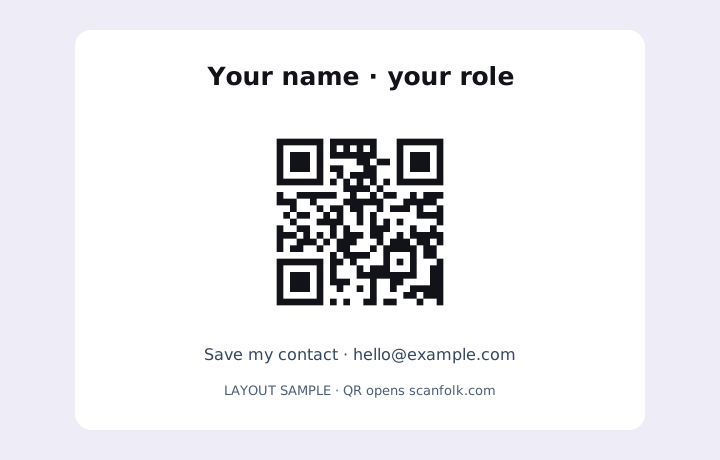
What happens after a scan
A vCard QR stores contact details directly and a scanner may offer to import them; the recipient still confirms. A website QR needs connectivity to load its page. Neither choice edits information already encoded in a printed QR.
Where it fits
- A contact card with a name, phone and email
- A portfolio card linking to current work
- A company card linking to a public team or contact page
Before you share or print
- Keep human-readable name and contact details on the card as a fallback.
- Avoid trim, folds, rounded card corners and textured or reflective areas. Preserve the QR border.
- Use fewer vCard fields if the pattern becomes too dense. Test both decoding and the actual contact import.
- Verify the final size and finish. These layout examples are digital illustrations, not qualified physical print samples.
Common questions
Should I use a vCard or a website?
Use a vCard to share a fixed set of contact fields. Use a website if you maintain a public page or portfolio and want to update that page at the same address.
Can I add a logo?
Yes. The existing logo controls protect the center and use H correction. Test the finished export and final print; a logo does not guarantee scanning.
What size should the QR be?
Allocate space for the complete code and quiet zone. Size depends on payload density, camera, distance and finish. Use the print-size guide and test a proof rather than treating a single width as universal.
Explore every QR tool.
Choose a specific payload, keep customizing in Standard, or move into a scan-tested Creative direction.