Google Review QR Code Generator
Paste your Google Business Profile review link, customize the QR, and download it for your counter, receipt or follow-up materials.
Send customers to your review form
Copy the review link from your own Business Profile. Check the business that opens before sharing.
TemplatesGoogle Review
Applies a scan-safe palette, logo, shapes, and H correction. You can customize everything after.
ShapeSoft · Rounded
Color
LogoAdded · H correction
 Google Review templateCentered inside a protected module-free zone.
The protected center removes QR modules; it does not add a white box behind the logo. Test the final placement before publishing.
SettingsH · 4 modules
From destination to download
- 1
In Google Business Profile, select Read reviews, then Get more reviews, and copy the link.
- 2
Paste the complete link above. The form accepts g.page/r/…/review and Google local/writereview links with a place ID.
- 3
Open the destination yourself and check the business name. Download the QR and test the final sign before displaying it.
A counter sign that explains the scan
Place the QR beside your business name and a neutral invitation: “Tell us about your visit.” Leave enough clear space for the code and keep it away from glossy reflections.
Plan your print dimensions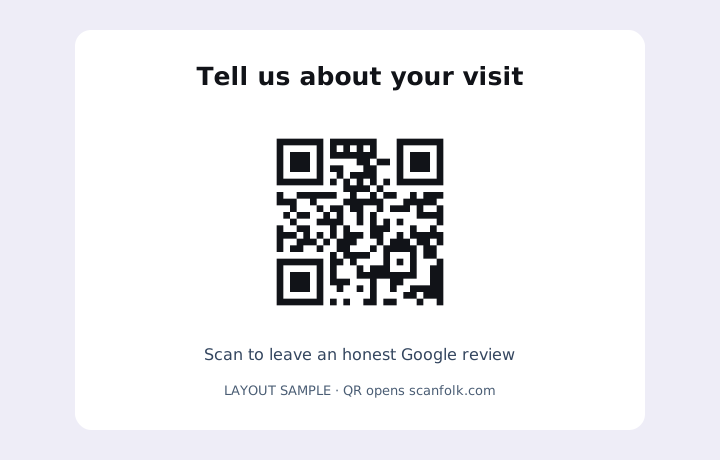
What happens after a scan
The QR contains a web address. Google handles sign-in and the review form; the customer chooses whether to leave a review. Scanfolk never posts a review for them.
Where it fits
- A counter sign after a completed visit
- A receipt or thank-you card
- A follow-up message to customers with a genuine experience
Before you share or print
- Use the review-request link, rather than a Maps listing, search result or Business Profile management URL.
- If Google supplies another link format, use the general URL generator and verify its destination yourself.
- Invite honest feedback without incentives or selecting only happy customers. Keep a readable business name and alternative URL on the sign.
Common questions
Can Google create a review QR itself?
Yes. Google Business Profile offers a QR and review link. Scanfolk adds its existing QR design and export controls; it is optional.
Does a valid format prove this is my business?
No. Format validation cannot verify the place, ownership, account access or a live review form. Open the link and check it.
Will this increase my rating?
There is no promised rating or review count. The QR only helps a customer reach the review destination.
Explore every QR tool.
Choose a specific payload, keep customizing in Standard, or move into a scan-tested Creative direction.